
OpenMRS:User Guide Mobile: Forskjell mellom sideversjoner
| Linje 206: | Linje 206: | ||
You can now see the details of the upcoming appointment | You can now see the details of the upcoming appointment | ||
Swipe left to see more. | |||
Back to [[OpenMRS:Start|start page]] | |||
Go back to [[Forside/en|front page]] | |||
Sideversjonen fra 16. jun. 2025 kl. 18:21
Using OpenMRS on your mobile phone
Log in to OpenMRS
1. Log in:
1.1 open http://malinux.no:8080/openmrs/spa/ in your mobile phone browser.
Log in with your username and password. If you do not have this, contact system administrator to get this.

2. Select location (department)
2.1 We use «Outpatient Clinic» (Poliklinikk) in the demo
Press “Confirm” to continue.

3. Register Ebola vaccine on patient
3.1 Add new patient by clicking on figure with + symbol
Note: If the patient is already in the system, go to 3.7 Find an existing patient by searching, else continue here:

3.2 Fill in Name, Familiy Name, Sex and Birth
Minimum needed the 1. First Name, 2. Family Name, 3. Sex and 3. Birth fields must be completed:
In the Sex field, select: Male or Female.
Select Other or Unknown for the medical condition: Q56.4 (ICD-10) Indeterminate sex and LD2A.Z (ICD-11) (Disorders of sex development, unspecified);

Scroll down to select "Date of Birth"
If date of birth is unknown, press No and enter an estimated age in years or months.

Note: Scroll down the page to fill in info such as "Address" and "Relationships" (Not mandatory).
3.6 Register patient by clicking green button

You can continue to 3.9 Start a visit to register Ebola vaccine on patient
3.7 Find an existing patient by searching
Press the magnification symbol in the top right and the search interface appears

3.8 Search for the test patient Isaac Akello
Note: As you type you will get suggestions, so you don't necessary need to type the entire name as seen bellow.
3.9 Start a visit to register Ebola vaccine on patient

Swipe to the left, to reveal the green “Start visit” that need to be pressed a second time.

Now press the green “Start visit” button.

3.10 Select «Facility Visit» in the right list and then press «Start visit»

Scroll down and swipe left to reveal the green “Start visit” button on the bottom right:

1) press hamburger menu on the top left

2) Select Immunization from the menu

3.12 Press «Record Immunizations»
Press “Record immunizations”

3.13 Select Ebola vaccine, Ervebo from the Immunization list
1. Select Ebola vaccine, Ervebo from the Immunization list
2. Press the green Save button

3.14 End visit
You will now see a list of the Recent vaccinations and you will see the Ebola vaccine in the list.

You can now press the green “End visit” button on top right:

Confirm end visit by pressing the red “End visit” button.

3.15 Congratulations you did it!
4. Register vitals on patient
Note: If the patient doesn't exist, see section 3.1 to 3.6 on how to register new patient
4.1 Start a new visit
4.1.1 Find the patient to record vitals and Start a visit
1. Press the magnifier icon in the top
2. Search for an existing patient and press the green Start visit button
3. swipe to the left to reveal the green “Start visit” button on the right.
4. Press the green Start visit button
4.1.2 Chose “Visit Type”, example Facility Visit and click Start visit
Click "Start Visit"
4.1.3 Recording patient vitals and biometric
You can record 1. vital signs, 2. biometrics, 3. active medications and 4. conditions


Note: To record other facts such as Immunizations, Allergies, orders, see results click the "hamburger menu" in top left corner and pick from the list on the left
4.2 Record vital signs
Click record vitals and fill in the values in the list

Scroll down to record Biometrics and click the green “Save and close” button to register:

Note: The color changes to pink If a value is outside normal range. see picture below as a reference.

4.3 Patient facts is updated
We can now see updated records on the patient under Vitals and Biometrics. To see more, swipe to the left.

4.4 End visit
If the visit is over you can click the geen “End visit” button in top right corner to end the visit

5. Create new appointment


5.3 Click the green Create new appointment button on the right

5.4 Search for existing patient

5.5 Click on the name of patient

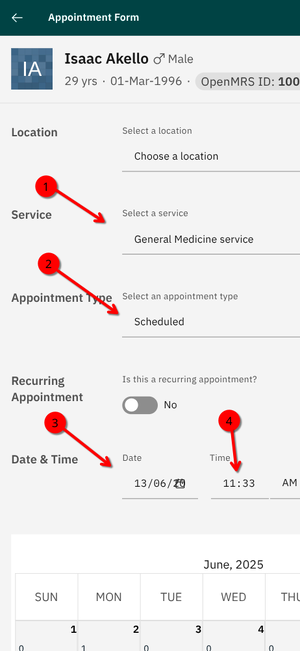
5.6 Fill in required fields
- Select a service for example General Medicine service
- Select an appointment type for example Scheduled
- Fill in Date for the appointment
- Fill in Time for the appointment
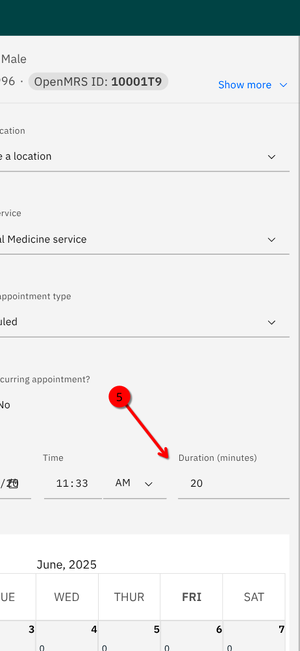
- Swipe right to fill in the Duration of the appointment for example 20 minutes


5.7 Fill in Provider
Scroll further down and fill in the rest
- Select a provider for example doctor - Jake Doctor
- Save and close to save appointment

5.7 View appointments
Click on Appointments calendar to see up coming appointments

5.8 Click on the appointment
Click on the appointment for Isaac Akello we scheduled for 13. June 2025.

5.9 See details of the appointment
Click on the arrow pointing down at the left side of the patient name as shown

You can now see the details of the upcoming appointment
Swipe left to see more.
Back to start page
Go back to front page